
Applies to: Linux and WordPress hosting customers
Your website files live in the public_html folder of your virtual server. You can manage them right in the browser with Virtualmin's File Manager, or over FTP with a program like FileZilla. This guide covers both.
Using the File Manager
- Log into Virtualmin (see How to log into Virtualmin).
- Click File Manager in the left sidebar.
- Open the public_html folder — this is your website's root. A file called
index.htmlorindex.phphere is your homepage. Files outside public_html (like Maildir and logs) are system folders — leave those alone.
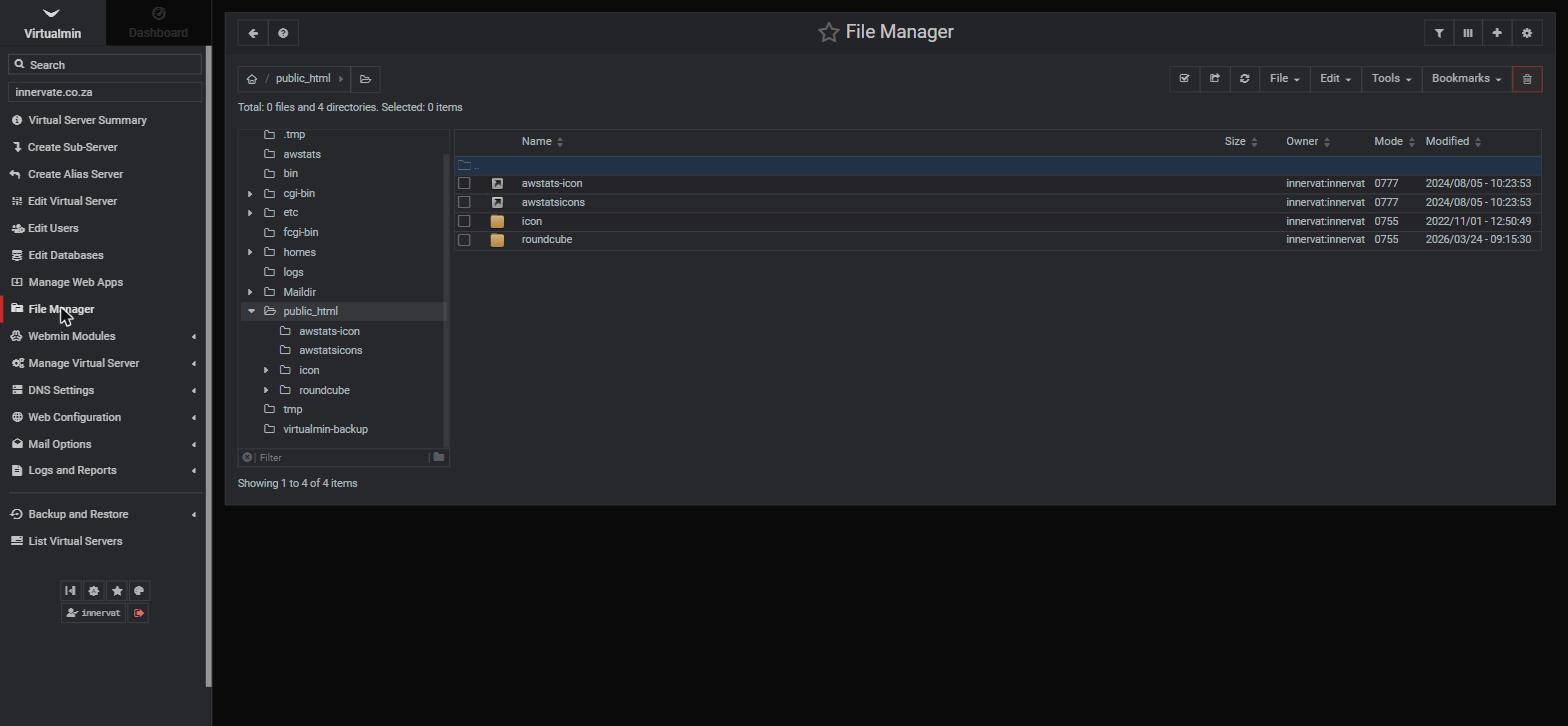
The toolbar (top right) handles everything: the upload icon sends files from your computer; File creates files and folders; Edit covers copy, cut, paste, rename and delete; Tools includes compress/extract for zip archives — the fastest way to upload a whole site is to zip it locally, upload the one file, then extract it here. Right-clicking a file also gives you an edit option for quick text changes.
Uploading with FTP instead
For bigger jobs, use FileZilla or another FTP client:
- Host: your server name (e.g. caesar.webtech.co.za — shown on your client area product page) or your domain
- Username / Password: your Virtualmin login (the same account you sign into the panel with)
- Port: 21 with explicit FTP over TLS
Once connected, upload your files into public_html. Additional FTP-capable users can be created under Edit Users > Add FTP user if you want to give a developer access without sharing your main password.
Frequently asked questions
I uploaded my site but the domain still shows the old/default page.
Check the files went into public_html itself, not a subfolder inside it, and that your homepage is named index.html or index.php. Then force-refresh the browser with Ctrl+F5.
Can I edit a file directly on the server?
Yes — in the File Manager, right-click the file and choose to edit it. For anything more than a small tweak, keep a local copy too.
Related articles
How to log into Virtualmin • How to install WordPress • How to upload your website with FileZilla