
Applies to: Linux and WordPress hosting customers
Virtualmin has a built-in installer that sets up WordPress in a few clicks — it creates the database, configures the connection, and installs the latest WordPress for you. No manual downloads or database wrangling required.
Installing WordPress
- Log into Virtualmin (see How to log into Virtualmin).
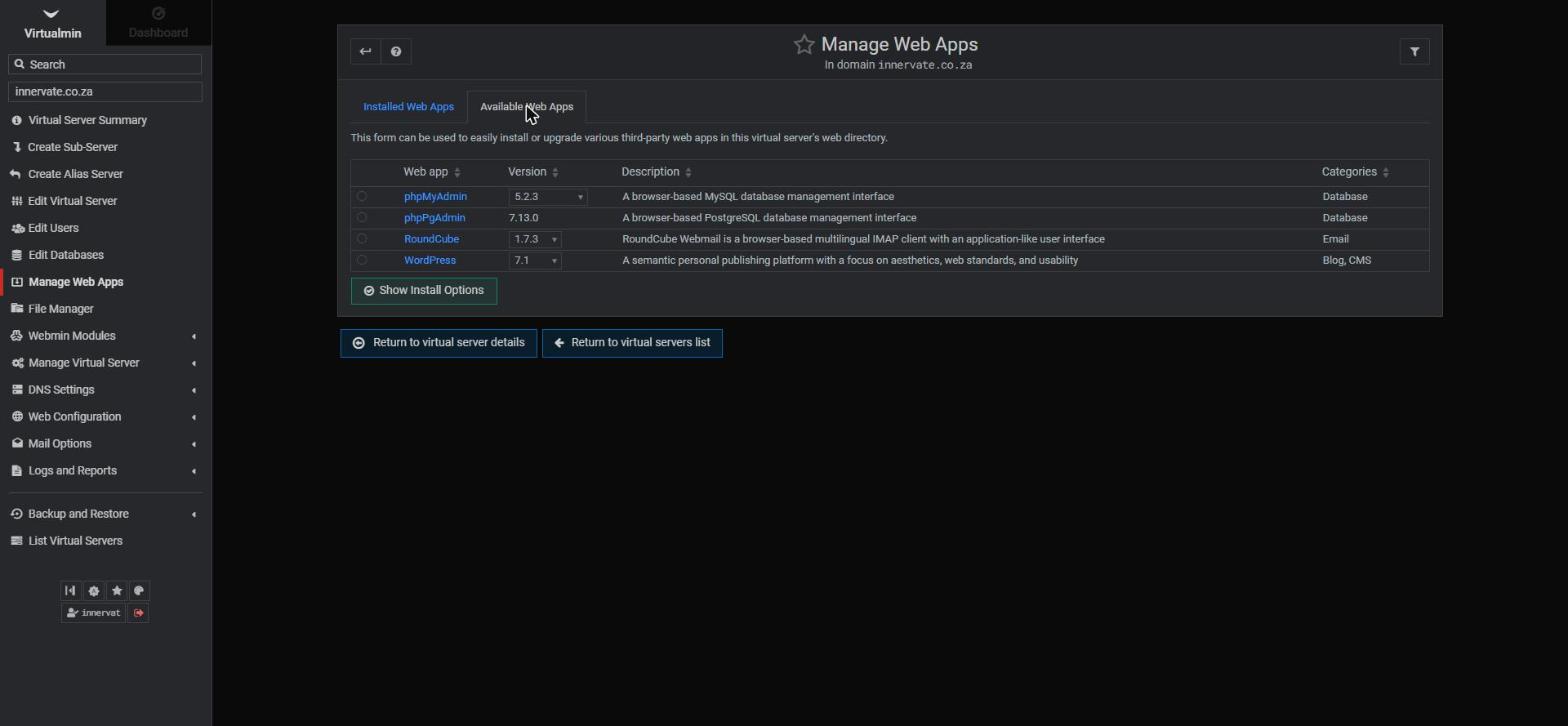
- Click Manage Web Apps in the left sidebar.
- Open the Available Web Apps tab. You'll see the installable apps — WordPress, phpMyAdmin, RoundCube and others.
- Select WordPress and click Show Install Options.
- Choose where to install:
- At top level — WordPress becomes your main website at yourdomain.co.za (the usual choice for a new site).
- In a sub-directory — e.g. yourdomain.co.za/blog, if WordPress should live alongside an existing site.
- Review the database settings (Virtualmin creates a database for you automatically) and click to install.
- When the installer finishes, it shows the link to complete the famous five-minute WordPress setup: choose your site title, admin username, password and email, then log in at
yourdomain.co.za/wp-admin.
Managing and updating
The Installed Web Apps tab lists what's installed, its version, and shows when an update is available — select the app and click Upgrade Selected Web Apps to update it. Keep WordPress, its themes and plugins updated: outdated plugins are the number one cause of hacked sites.
First steps after installing
- Log into
yourdomain.co.za/wp-admin. - Pick a theme (Appearance > Themes) and delete any sample content.
- Set your permalink structure (Settings > Permalinks > "Post name" is a good default).
- Install only the plugins you need — fewer is faster and safer.
- Confirm your site loads over https:// — SSL is set up automatically on our Linux hosting (see How to set up an SSL certificate in Virtualmin).
Frequently asked questions
Which WordPress admin password should I use?
A unique, strong one — the wp-admin login is the most attacked page on any WordPress site. Consider a security plugin that limits login attempts.
Can I install other apps the same way?
Yes — phpMyAdmin (database management in the browser) and RoundCube (webmail) install exactly the same way from Available Web Apps.
Related articles
How to log into Virtualmin • How to manage databases in Virtualmin • How to set up an SSL certificate in Virtualmin