
Applies to: Linux and WordPress hosting customers
Our Linux hosting uses MariaDB — a fully MySQL-compatible database server (your applications, including WordPress, treat it exactly like MySQL). Here's how to create databases, manage access, and work with your data.
Viewing and creating databases
- Log into Virtualmin (see How to log into Virtualmin).
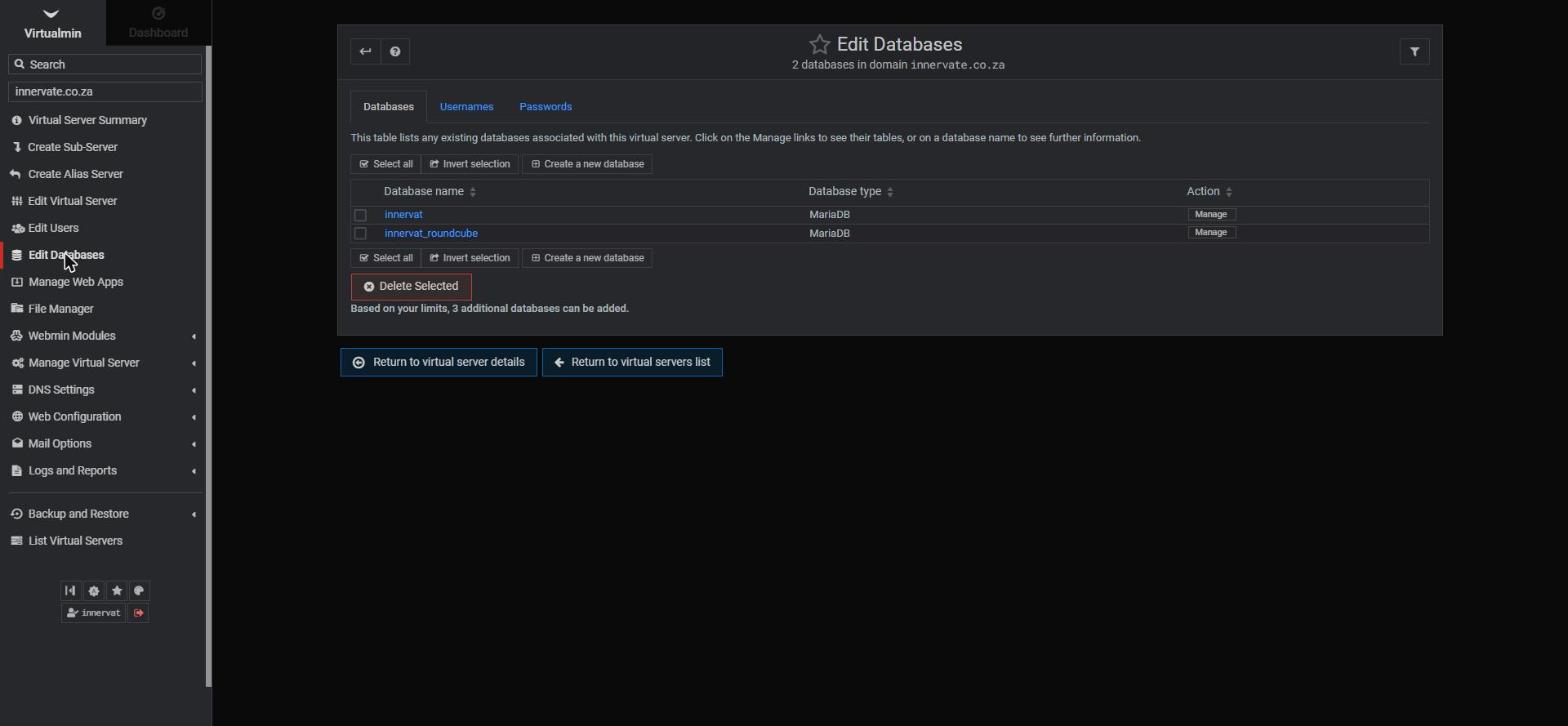
- Click Edit Databases in the left sidebar. The Databases tab lists your existing databases and how many more your plan allows.
- To create one, click Create a new database, give it a name, and save.
Usernames and passwords
The Usernames and Passwords tabs on the same page control database logins. Your main account username has access to all your databases; its database password can be set on the Passwords tab. If an application needs its own restricted login, additional users can be added per database.
Changed a database password? Update it in the applications that use it at the same time — for WordPress that's wp-config.php — or your site will show a "database connection" error until you do.
Working with your data: phpMyAdmin
To browse tables, run queries, and import/export data in your browser, install phpMyAdmin:
- Go to Manage Web Apps > Available Web Apps.
- Select phpMyAdmin, click Show Install Options, and install (a sub-directory like /phpmyadmin is the usual choice).
- Browse to that path on your domain and log in with your database username and password.
Backing up a database
Two easy options: export from phpMyAdmin (Export tab > SQL format > download), or use Virtualmin's Backup and Restore in the sidebar, which can include databases in a full virtual-server backup. Back up before upgrades and big changes, and keep a copy off the server.
Frequently asked questions
Is MariaDB really compatible with MySQL?
Yes — it's a drop-in replacement. Connection settings, SQL syntax and tools (including phpMyAdmin and mysqldump) work the same. Use "localhost" as the database host in applications running on your hosting.
WordPress says "Error establishing a database connection" — what now?
The database name, username or password in wp-config.php doesn't match the database. Check them against Edit Databases, and reset the database password if needed.
Related articles
How to install WordPress • How to log into Virtualmin