
Applies to: Linux and WordPress hosting customers
Forwarding sends a mailbox's incoming mail on to another address; an autoresponder sends automatic replies (the classic out-of-office). Both live on the mail user's settings page in Virtualmin.
Getting to the settings
- Log into Virtualmin (see How to log into Virtualmin).
- Click Edit Users in the sidebar, then click the user you want to configure.
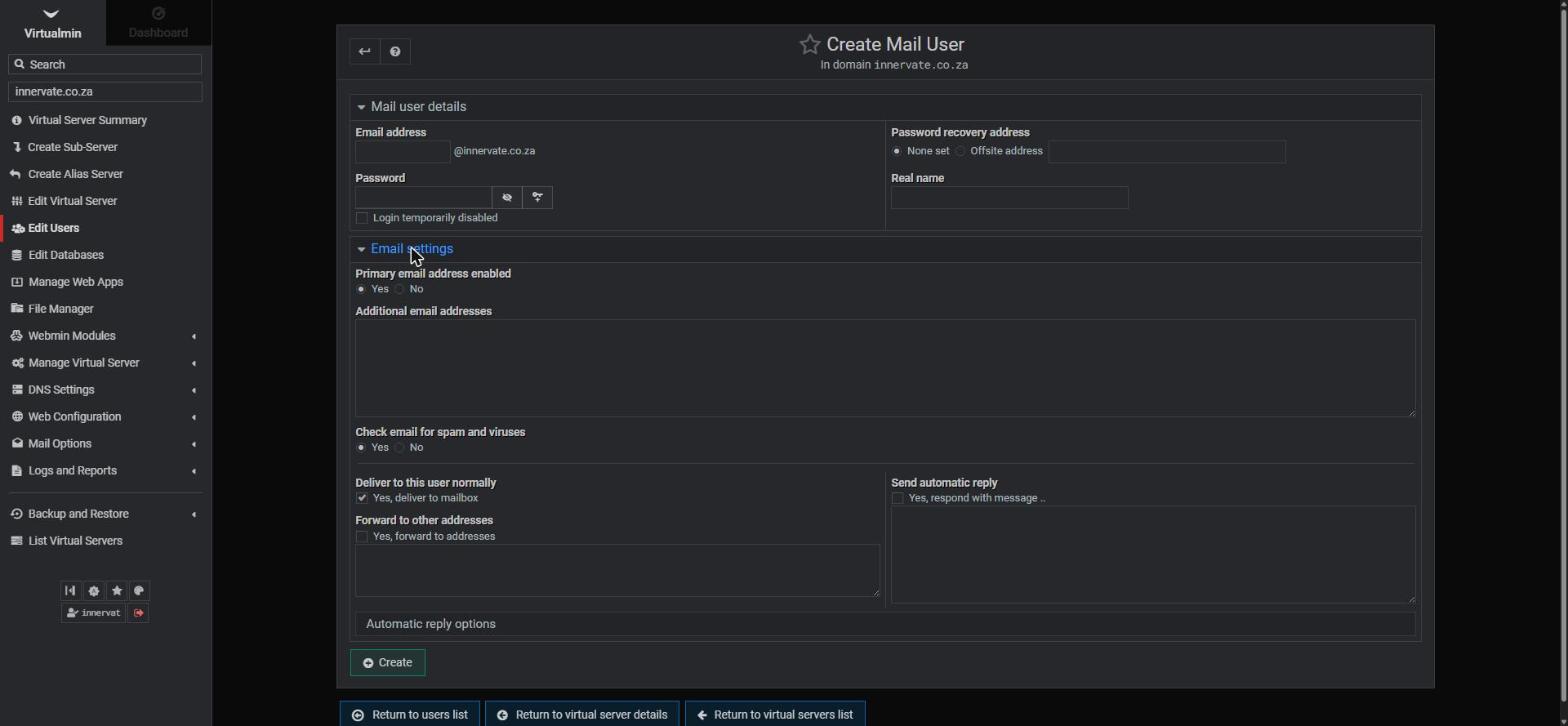
- Expand the Email settings section.
Setting up forwarding
- Under Forward to other addresses, tick Yes, forward to addresses and enter one destination address per line.
- Decide what happens locally with Deliver to this user normally:
- Ticked — a copy stays in this mailbox and gets forwarded (recommended, so you always have a backup copy).
- Unticked — mail is only forwarded, nothing is kept here.
- Click Save.
Setting up an autoresponder
- Under Send automatic reply, tick Yes, respond with message and type your reply — when you're back, who to contact meanwhile.
- Open Automatic reply options to fine-tune: a start and end date (so it turns itself on and off around your leave), and the minimum time between repeated replies to the same sender.
- Click Save.
Extra addresses without extra mailboxes
Want sales@ and accounts@ to land in the same inbox? On the same page, add them under Additional email addresses — they become aliases of this mailbox, no new accounts needed.
Tips
When forwarding to Gmail or similar, their spam filters occasionally reject forwarded mail — keep local delivery on so nothing is ever lost. And keep autoresponder messages light on personal detail; they go to everyone who writes to you, including strangers.
Related articles
Setting up email accounts in Virtualmin • How to access webmail (Linux hosting)