
Applies to: all Webtech customers
This guide covers ordering a new hosting package, and — just as important once it's active — where to find your hosting details and how to get into your control panel.
Ordering a new hosting package
- Log into your client area at https://my.webtech.co.za (you can also order as a new visitor — an account is created at checkout).
- Go to Services > My Products & Services and click Place a New Order, or browse the Website Hosting menu on our site.
- Pick your category — WordPress Hosting or Linux Hosting for PHP/WordPress sites, Windows Hosting for .NET/Classic ASP/MSSQL sites — and choose a package.
- During checkout, tell us which domain the hosting is for: register a new one, transfer one in, or use a domain you already own.
- Complete checkout and pay the invoice. Your hosting is set up automatically and your welcome email — containing your control panel login details — is sent to your account email address. Keep it safe.
Finding your hosting details later
- Go to Services > My Products & Services and click on your hosting package.
- The Hosting Information tab shows the essentials: your domain, your control panel username, the server name your site lives on, its IP address, and your nameservers.
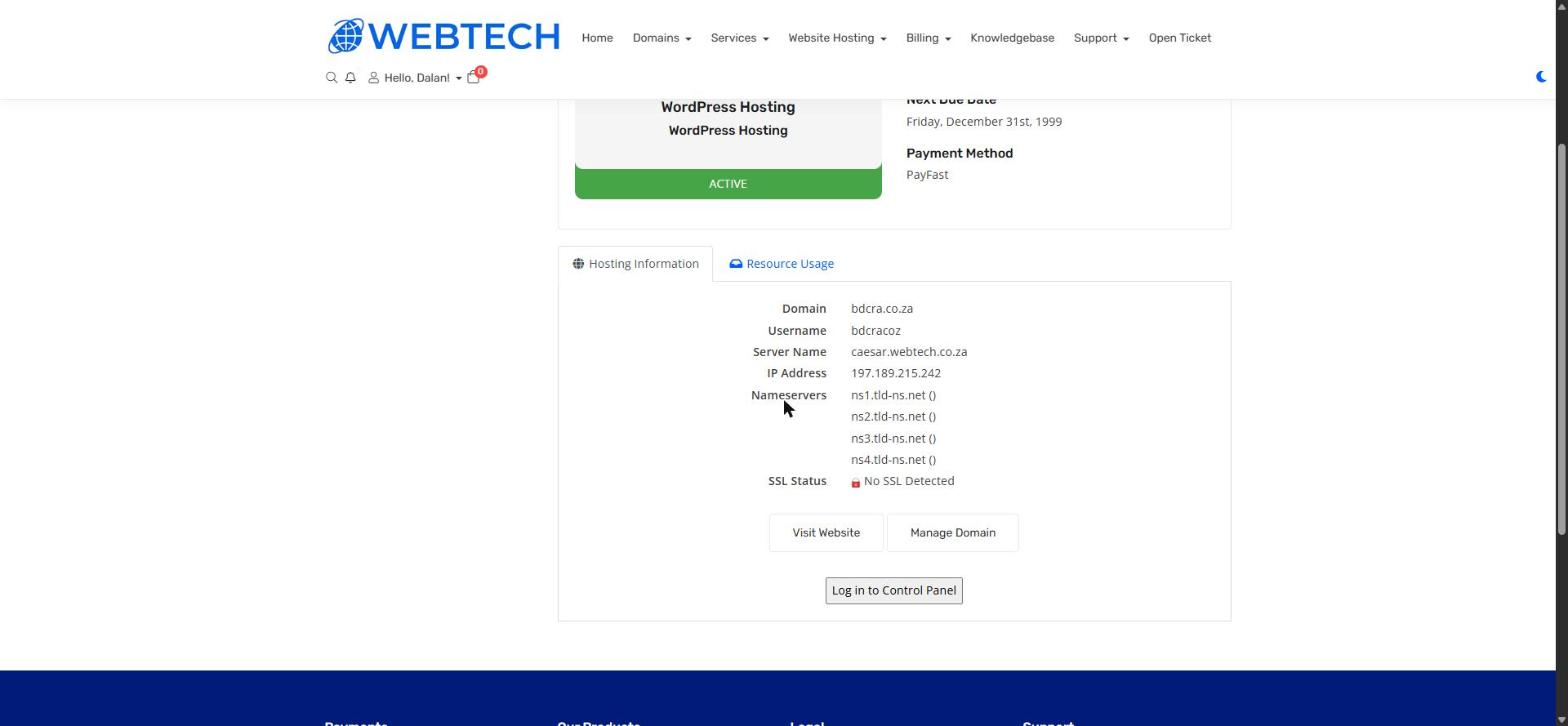
Logging into your control panel (no password needed)
On that same product page, click Log in to Control Panel. You'll be signed straight into your hosting control panel — Virtualmin for Linux/WordPress hosting, SolidCP for Windows hosting — without having to remember a separate password.
You can also go to the control panel directly (using the username and password from your welcome email):
- Windows hosting (SolidCP): https://panel.webtech.co.za
- Linux/WordPress hosting (Virtualmin): https://your-server-name:10000 — your server name is shown on the Hosting Information tab (for example caesar.webtech.co.za).
To change your control panel password, use the Change Password option in the left sidebar of the product page.
Related articles
How to log into SolidCP (Windows hosting) • How to log into Virtualmin (Linux hosting) • How to view and pay an invoice