
Applies to: all Webtech customers
All your Webtech invoices — for hosting, domain registrations and renewals — live in your client area. This guide shows you where to find them and the different ways you can pay.
Finding your invoices
- Log into your client area at https://my.webtech.co.za.
- In the top menu, go to Billing > My Invoices.
- The list shows every invoice with its date, due date, amount, and status (Paid, Unpaid, Cancelled or Refunded). Use the Status filter in the sidebar to show only unpaid invoices.
- Click an invoice row to open it.
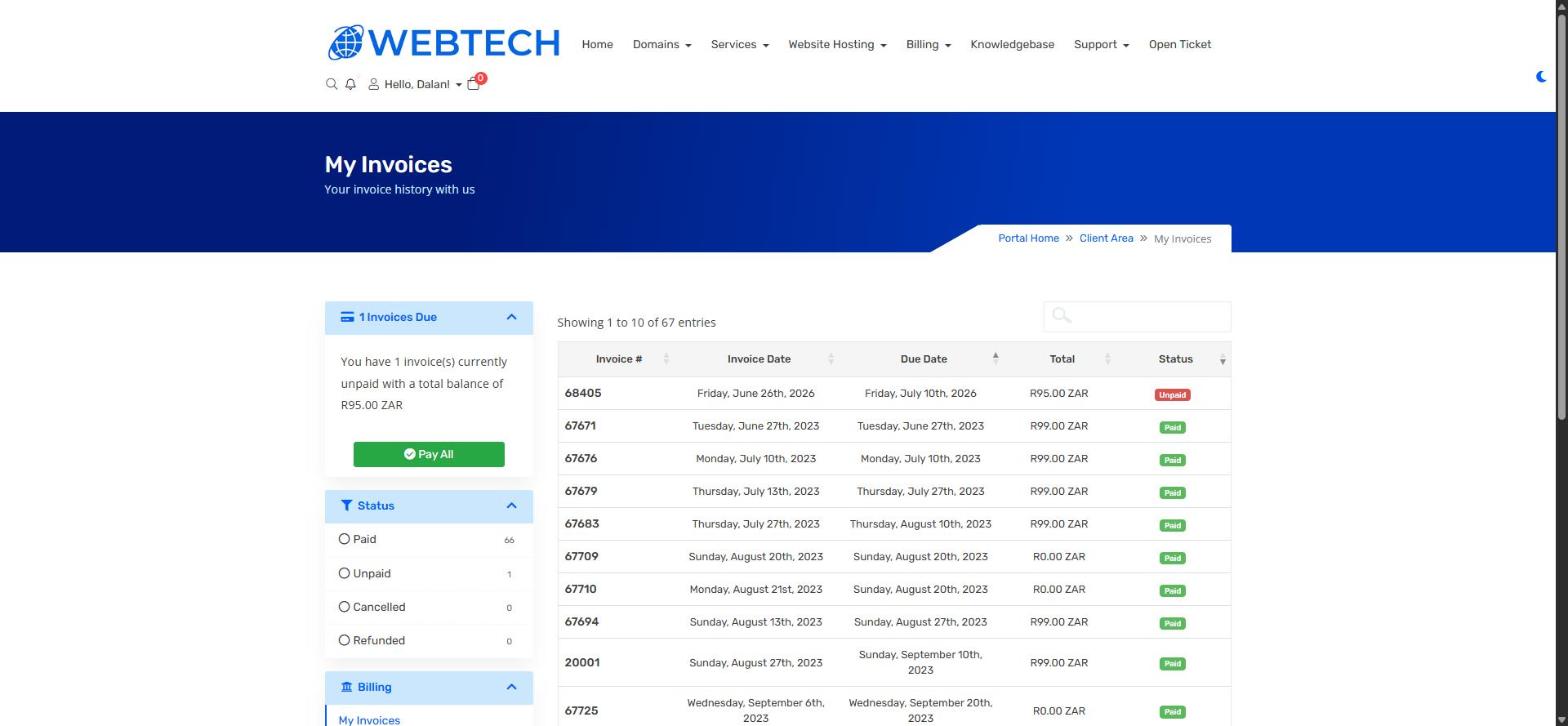
Shortcut: if you have anything outstanding, the dashboard shows an Overdue Invoices block with a Pay Now button the moment you log in.
Paying online with Payfast (card or Instant EFT)
- Open the invoice.
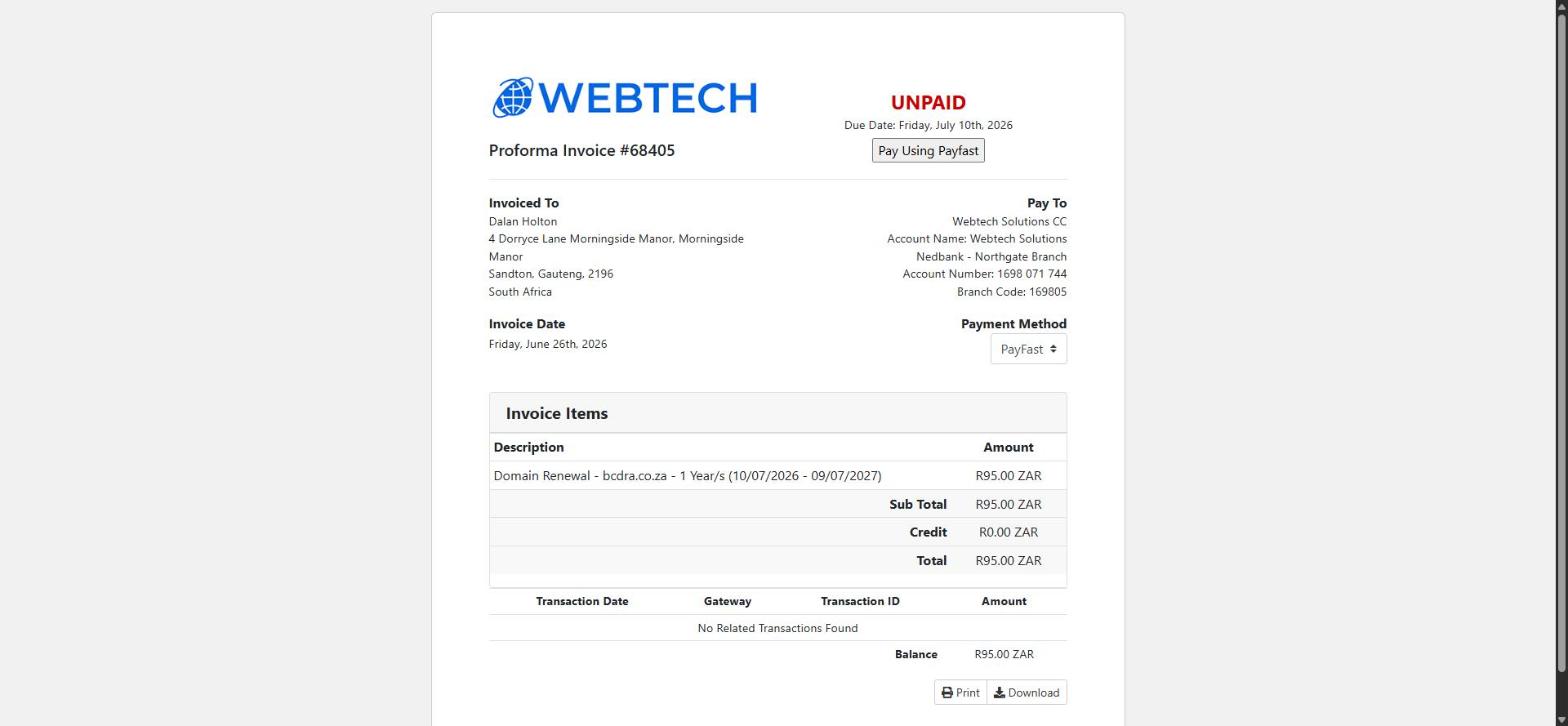
- Make sure the Payment Method dropdown (top right of the invoice) is set to PayFast.
- Click Pay Using Payfast.
- You'll be taken to Payfast's secure payment page, where you can pay by credit/debit card or Instant EFT. Once the payment completes you'll be returned to the invoice, which updates to Paid automatically — usually within a minute or two.
Paying by manual EFT (bank transfer)
Prefer a normal bank transfer? Our banking details are printed on every invoice under Pay To. When paying by EFT:
- Use the invoice number as your payment reference so we can match your payment.
- Email your proof of payment to us or attach it to a support ticket if you need the service activated urgently.
- Note that manual EFT payments are only marked as paid once the funds reflect, which can take a business day or two depending on your bank. Payfast's Instant EFT clears immediately.
Downloading or printing an invoice
Open the invoice and use the Print or Download buttons at the bottom right — handy for your bookkeeper. Note that unpaid invoices are issued as proforma invoices; the final tax invoice is available once payment is made.
Frequently asked questions
Why did I receive an invoice weeks before my renewal date?
We invoice in advance so you have plenty of time to pay before the service or domain actually expires. The due date on the invoice is the date that matters.
What happens if I don't pay?
Hosting services may be suspended after the due date, and unpaid domain renewals will let the domain expire. If you've decided to cancel a service instead, please request a cancellation in the client area rather than just leaving the invoice unpaid.
Related articles
How to renew your domain • How to turn domain Auto Renew on or off