
Applies to: domains registered through Webtech that use our default nameservers
DNS records tell the internet where to find the different parts of your domain — where your website lives (A records), where your email should be delivered (MX records), and more. You can edit these yourself in the client area. This guide shows you how.
Step 1: Activate DNS Management (once-off, free)
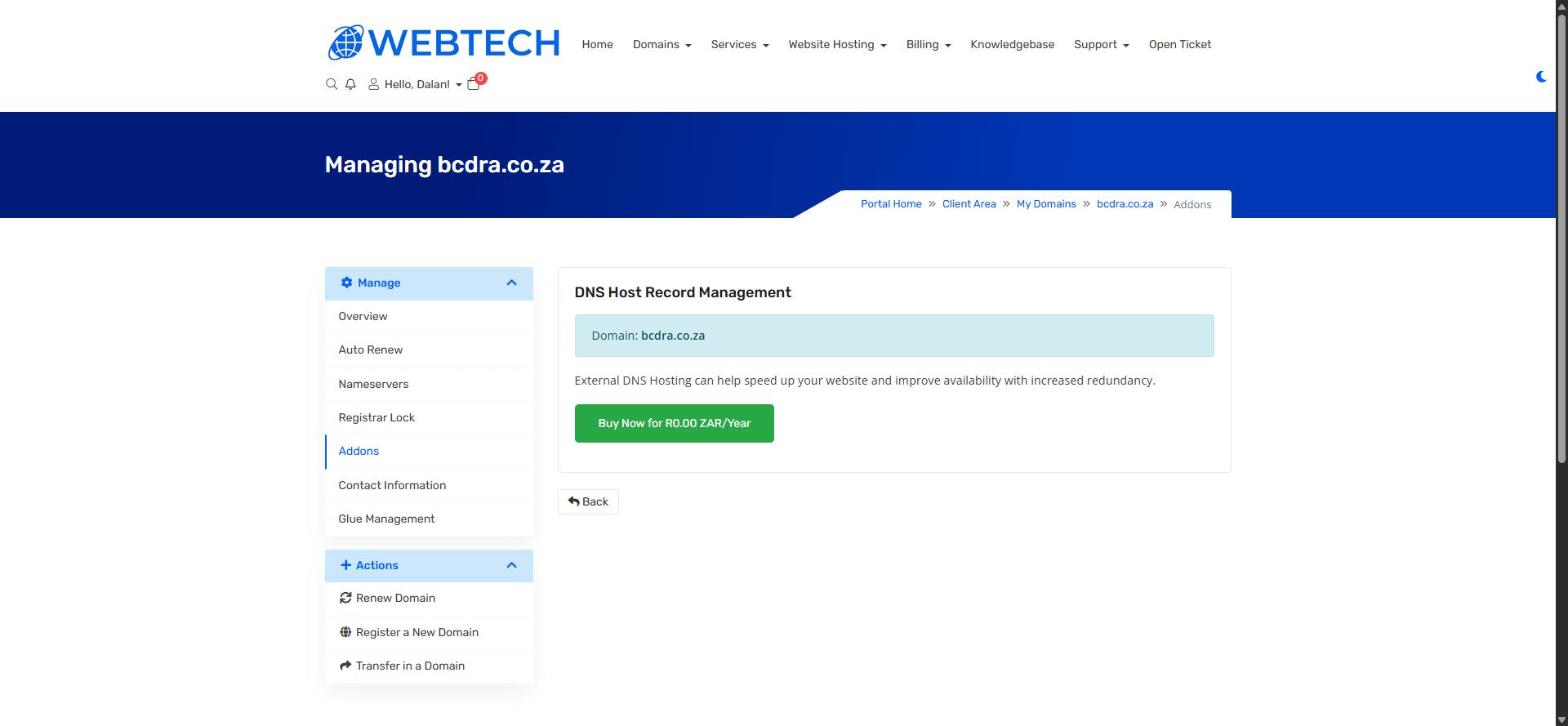
DNS Management is a free add-on that needs to be activated per domain before the editor appears:
- Log into your client area at https://my.webtech.co.za.
- Go to Domains > My Domains and click the row of the domain you want to manage.
- In the left sidebar, click Addons.
- Under DNS Host Record Management, click Buy Now for R0.00 ZAR (it's free — no invoice to pay).
- Refresh the page. A new DNS Management item appears in the left sidebar.
Step 2: Edit your DNS records
- Click DNS Management in the domain's left sidebar.
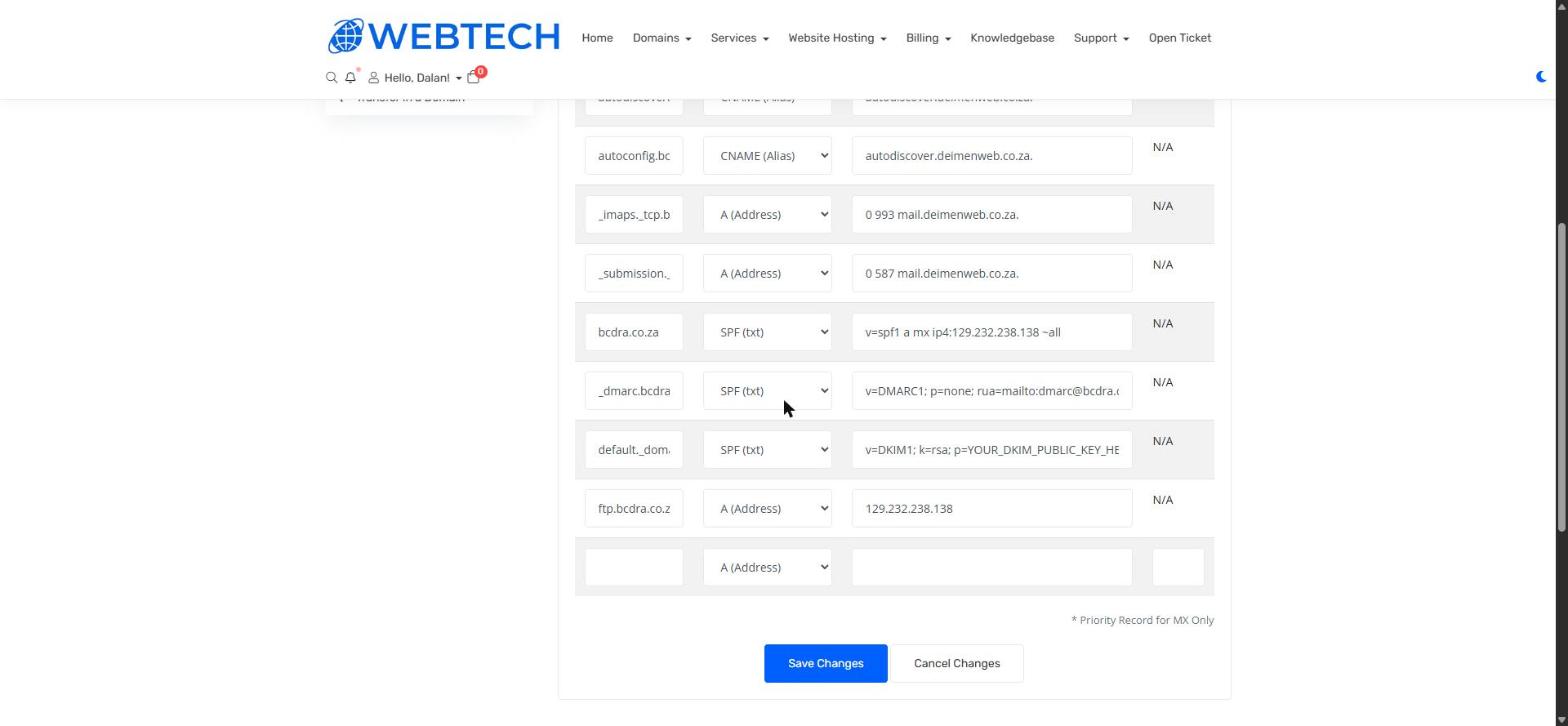
- You'll see a table of your current records with four columns: Host Name, Record Type, Address, and Priority (used for MX records only).
- To edit a record, change its values directly in the table.
- To add a record, use the empty row at the bottom of the table: enter the host name, pick the record type, and enter the address/value.
- Click Save Changes when you're done (or Cancel Changes to discard).
Record types explained
A (Address) — points a name to an IPv4 address. Example: yourdomain.co.za → 129.232.238.138 makes your website load from that server. The www version of your domain is usually a second A record.
MX (Mail) — tells other mail servers where to deliver email for your domain, e.g. mail.yourdomain.co.za. The Priority number matters when there is more than one MX record: lower numbers are tried first.
CNAME (Alias) — makes one name an alias of another, e.g. pointing shop.yourdomain.co.za at an external service. Note the trailing dot when pointing at a full external hostname.
SPF (txt) — text records, used for things like SPF, DKIM and DMARC, which help prevent your email being spoofed and improve deliverability.
Important to know
DNS changes are not instant — they can take up to 24 hours to propagate around the internet, though most changes are visible much sooner. Double-check values before saving: a typo in an A or MX record can take your website or email offline. If you're unsure, open a support ticket and we'll gladly check your changes with you.
This editor only has effect while your domain is using our default nameservers. If you've pointed your domain at third-party nameservers (for example Cloudflare), your DNS is managed there instead. See How to change your domain's nameservers.
Related articles
How to change your domain's nameservers • How to set up Outlook and your phone (Windows hosting) • Email settings for Outlook and phones (Linux hosting)