
Applies to: all Webtech customers
Your Webtech client area is where you manage everything to do with your account: renewing domains, paying invoices, updating your details, managing DNS, and opening support tickets. This guide shows you how to log in, and what to do if you can't.
Logging in
- Go to https://my.webtech.co.za and click Login in the top-right corner of the page.
- Enter the email address you signed up with and your password.
- Click Login. You'll land on My Dashboard, which shows your services, domains, open tickets, and any unpaid invoices at a glance.
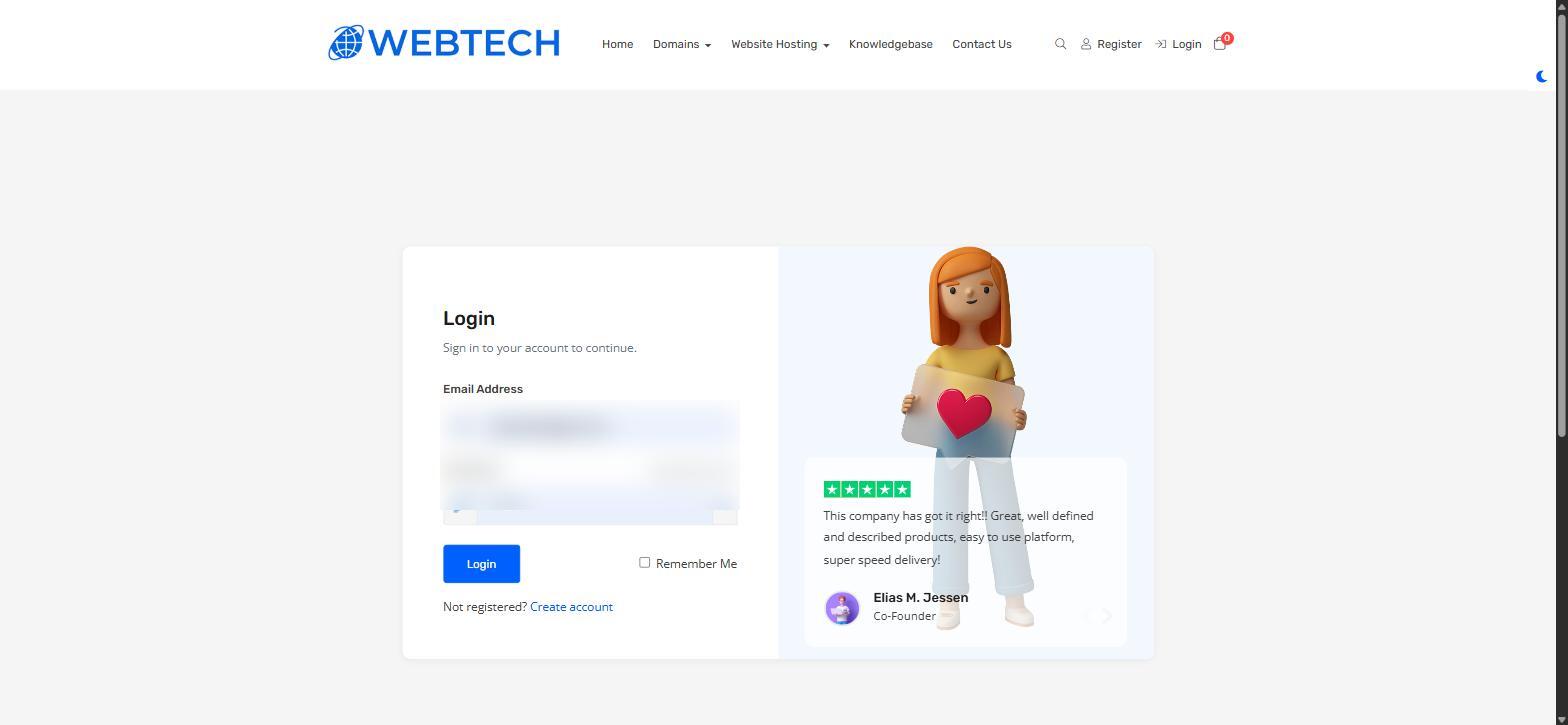
Tip: tick Remember Me only on your own private computer, never on a shared or public machine.
Forgotten your password?
- On the login page, click Forgot Password? (just above the password field).
- Enter your account email address and submit the form.
- You'll receive an email with a link to set a new password. The link expires after a short while, so use it promptly.
If you no longer have access to the email address on your account, please open a support ticket or contact us directly so we can verify your identity and update it.
Client area password vs. control panel password
Your client area login is separate from your hosting control panel login (SolidCP for Windows hosting, Virtualmin for Linux hosting). Changing one does not change the other. You can reach your control panel without a second password by logging into the client area, opening your hosting product under Services > My Products & Services, and clicking Log in to Control Panel.
Securing your account
We strongly recommend enabling two-factor authentication: click your name in the top menu, go to Security Settings, and click Click here to Enable under Two-Factor Authentication. See How to update account details and add users for a full walkthrough.
Frequently asked questions
Which email address do I log in with?
The one you used when you first signed up (or the one you later changed it to under My Details). Password reset emails go to this address.
Can more than one person access the account?
Yes — rather than sharing your password, add them as a user under Account > User Management, or add a billing/technical contact under Account > Contacts.