
Applies to: all Webtech customers
The fastest way to get help is a support ticket from your client area. Tickets are linked to your account and services, so we can see exactly what you have with us and start helping immediately — no back-and-forth to verify who you are.
Opening a ticket
- Log into your client area at https://my.webtech.co.za.
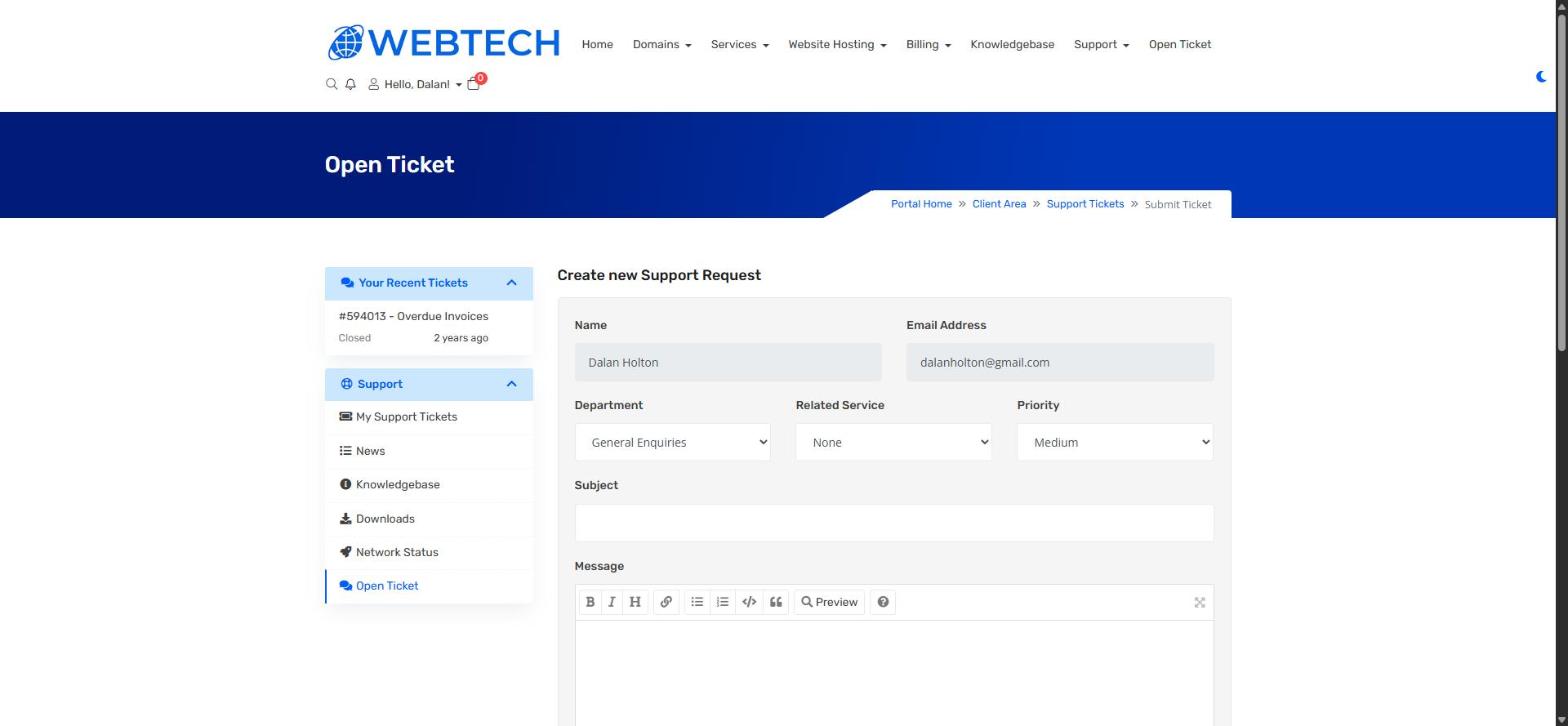
- Click Open Ticket in the top menu.
- Fill in the form:
- Department — choose the closest match to your issue.
- Related Service — select the hosting package or domain the issue concerns. This one field saves more time than any other, so please set it.
- Priority — Low, Medium or High.
- Subject — a short, specific summary, e.g. "Email bouncing on info@mydomain.co.za" beats "Email problem".
- Message — describe what's wrong, what you expected, and what you've already tried. Include any exact error messages.
- Attach screenshots if you have them, then submit.
What makes a ticket fast to resolve
Exact error messages (copy the whole thing), the address or domain affected, when it started, and whether it affects everyone or just one person/device. If it's an email problem, tell us the program or phone you're using and whether webmail works — that one detail usually cuts the diagnosis in half.
Never put passwords in a ticket. If we need access to something, we'll ask and arrange a secure way to get it.
Following up
You'll get an email whenever we reply. To view or respond, go to Support > My Support Tickets — replying from the client area keeps everything in one thread. Replying to the notification email also works.
Related articles
How to log into your client area