
Applies to: Windows hosting customers
Adding a website in SolidCP creates the IIS site and home folder that your files will live in. Once it's created, you upload your site with FTP or the File Manager, and point your domain's DNS at the server.
Before you start
The domain must already exist in your hosting space. Check under Hosting Space Menu > Domains — if it's not listed, click Add Domain first and follow the prompts.
Creating the website
- Log into SolidCP at https://panel.webtech.co.za (see How to log into SolidCP).
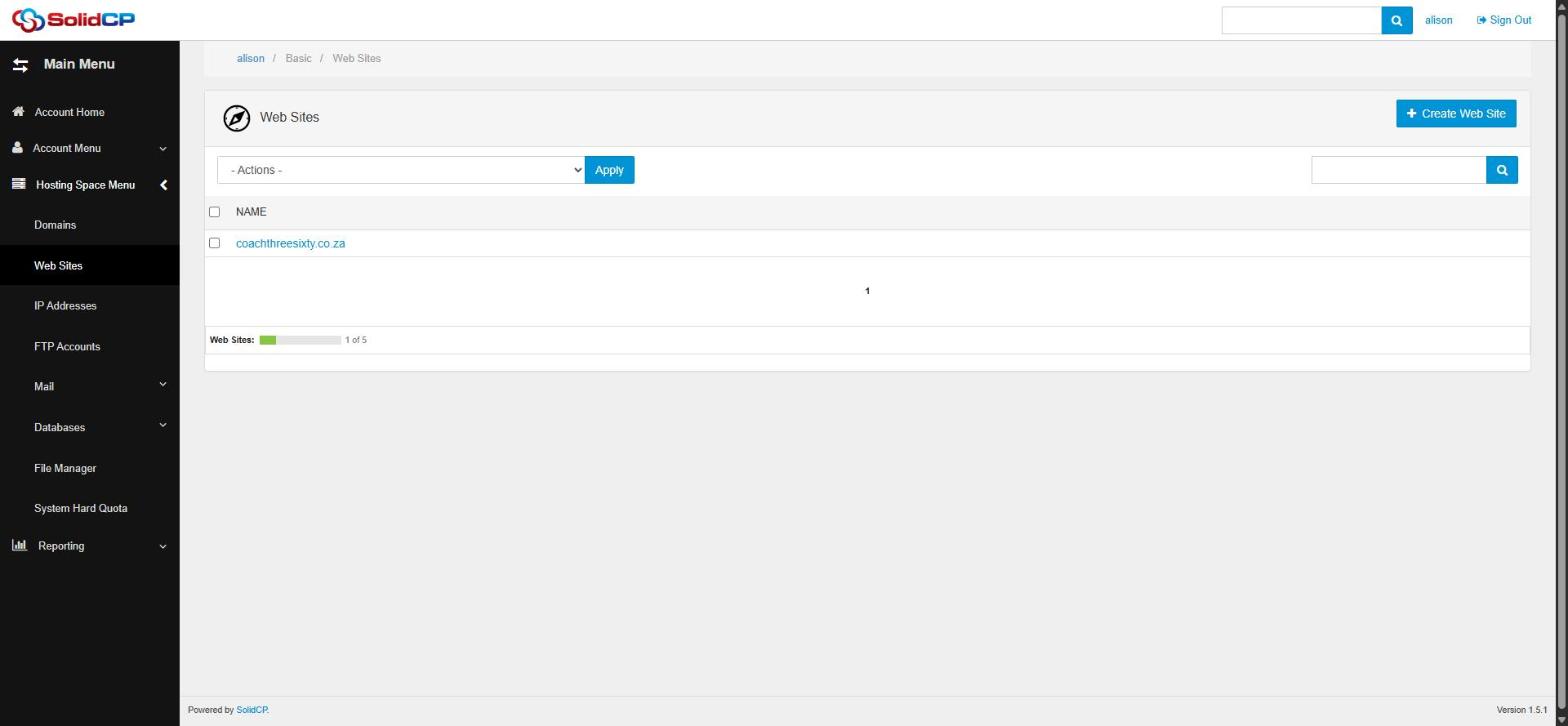
- Go to Web Sites — it's on the space home page under Web & Applications, and in the left sidebar.
- Click Create Web Site.
- Select the domain for the new site and confirm. The site is created on the server's shared IP address with a home folder like
\yourdomain.co.za\wwwroot.
Website properties worth knowing
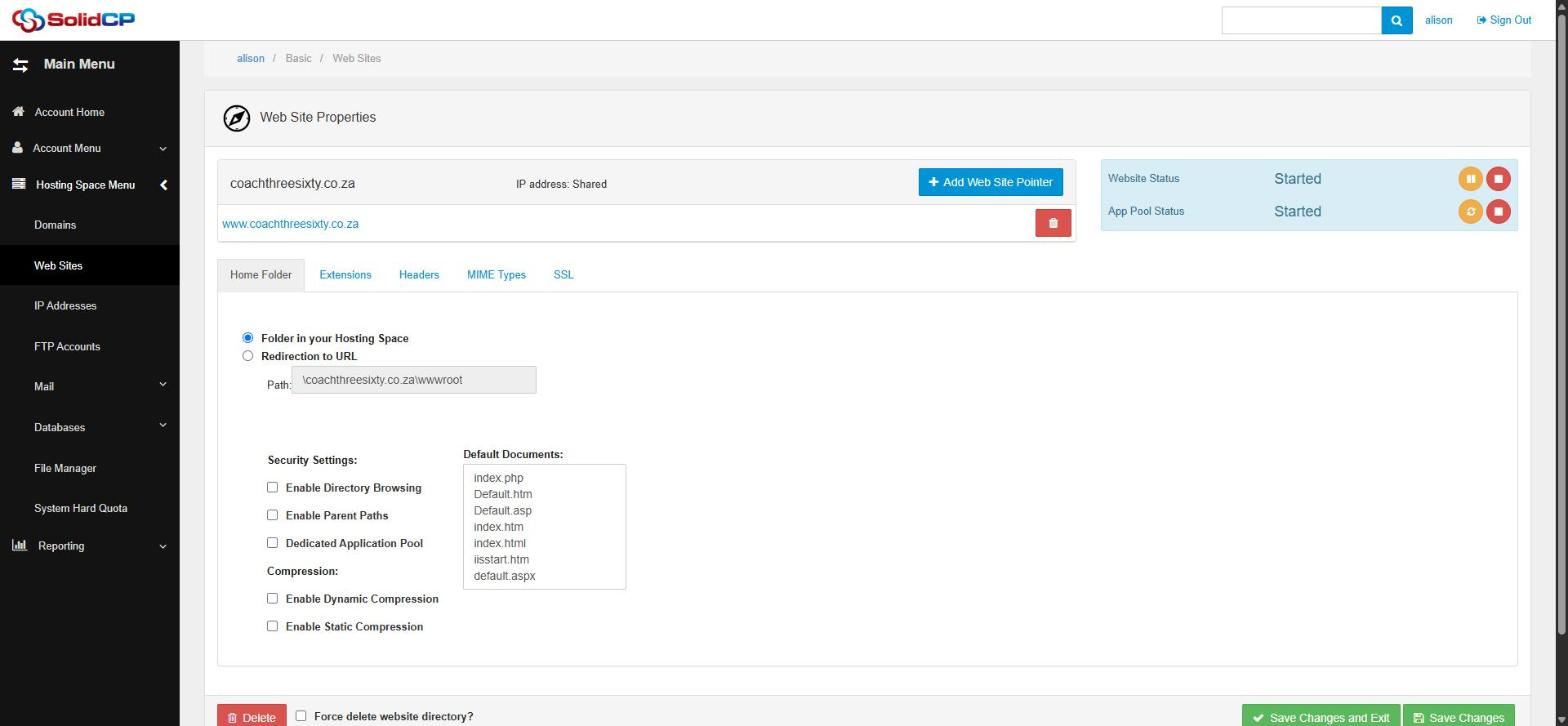
Click the site name in the Web Sites list to open Web Site Properties:
- Status — top right shows whether the website and its application pool are Started, with buttons to pause, stop or recycle.
- Add Web Site Pointer — point an additional domain at the same site.
- Home Folder tab — the folder your files serve from, security options (directory browsing, dedicated application pool), compression, and the list of default documents (index.php, default.aspx, index.html, and so on — the first one found is what loads when someone visits your domain).
- Extensions / Headers / MIME Types / SSL tabs — runtime versions, custom headers and certificate settings.
Next steps
- Upload your site — create an FTP account (see How to add an FTP account in SolidCP) and upload your files into the site's
wwwrootfolder, or use the built-in File Manager. - Point your domain — if your domain is registered with us on our default nameservers, its DNS is normally set up automatically. Otherwise, point the domain's A record at your server's IP (shown in your welcome email and on your client area product page).
- Test — browse to your domain. Until your own files are uploaded you'll see a placeholder page.
Related articles
How to add an FTP account in SolidCP • How to upload your website with FileZilla • How to add a Sub-Domain in SolidCP