
Applies to: Windows hosting customers
SolidCP is the control panel for your Windows hosting at Webtech. It's where you manage your websites, email accounts, FTP access, databases and files. Here's how to get in.
Option 1: Straight from your client area (easiest)
- Log into your client area at https://my.webtech.co.za.
- Go to Services > My Products & Services and click your Windows hosting package.
- Click Log in to Control Panel. You'll be signed into SolidCP automatically — no second password to remember.
Option 2: Logging in directly
- Go to https://panel.webtech.co.za.
- Enter the SolidCP username and password from your hosting welcome email.
- Click Login.
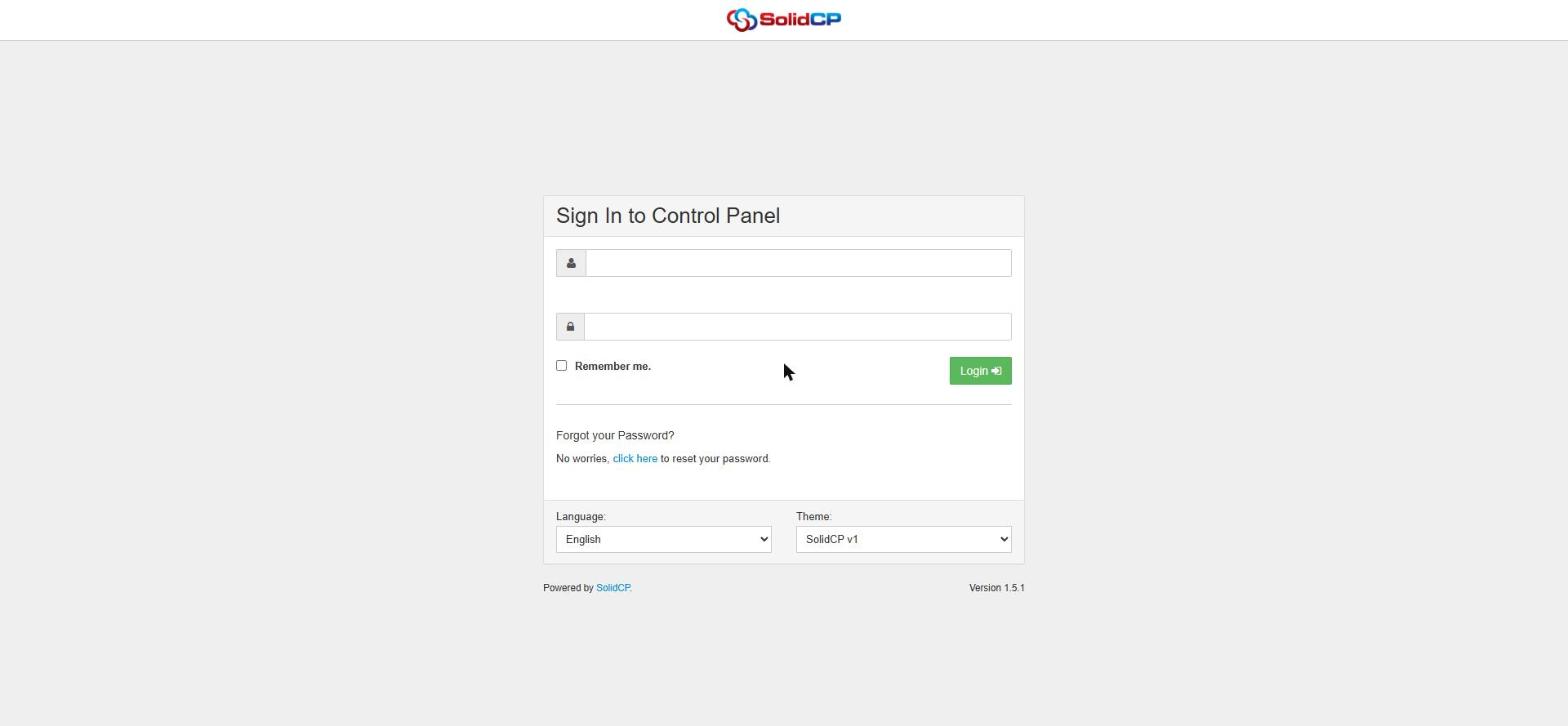
Forgotten your password? Click the click here link under "Forgot your Password?" on the login page to reset it, or use Option 1 above — the client area login always works.
Finding your way around
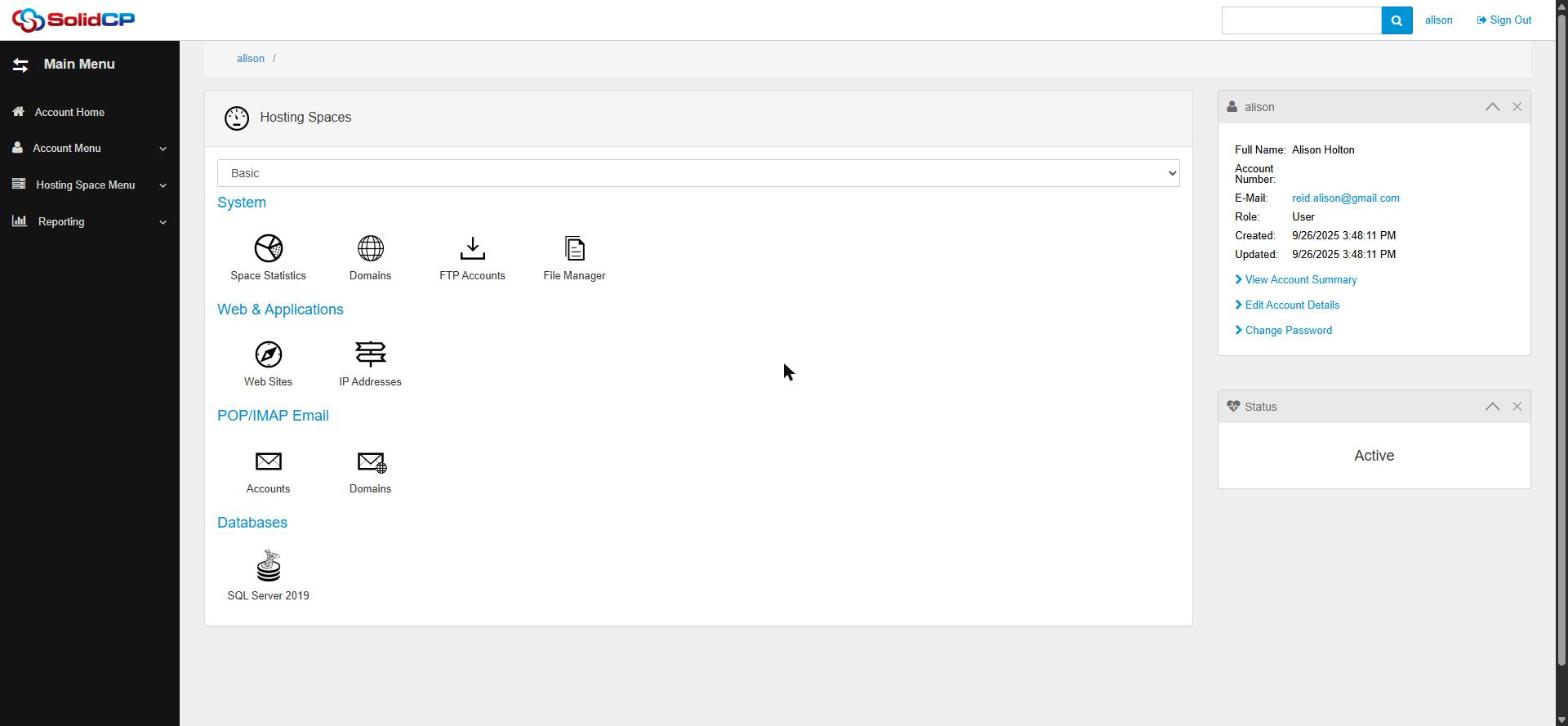
After logging in you land on your Hosting Space home page. Everything is grouped into sections:
- System — Space Statistics, Domains, FTP Accounts, File Manager
- Web & Applications — Web Sites, IP Addresses
- POP/IMAP Email — mail Accounts and mail Domains
- Databases — SQL Server 2019
The same items are always available from the Hosting Space Menu in the left sidebar, wherever you are in the panel.
Changing your SolidCP password
On the Hosting Space home page, look at the account box on the right and click Change Password. Enter and confirm your new password (or use the Generate button for a strong one) and save. This changes your SolidCP login only — your client area password is separate.
Related articles
How to add a website in SolidCP • How to add an email account in SolidCP • How to add an FTP account in SolidCP