
Applies to: Windows hosting customers
An FTP account lets you (or your web developer) upload and download your website files with a program like FileZilla. Here's how to create one, and the connection details you'll need afterwards.
Creating an FTP account
- Log into SolidCP at https://panel.webtech.co.za (see How to log into SolidCP).
- Go to FTP Accounts — under System on the space home page, or in the left sidebar.
- Click Create FTP Account.
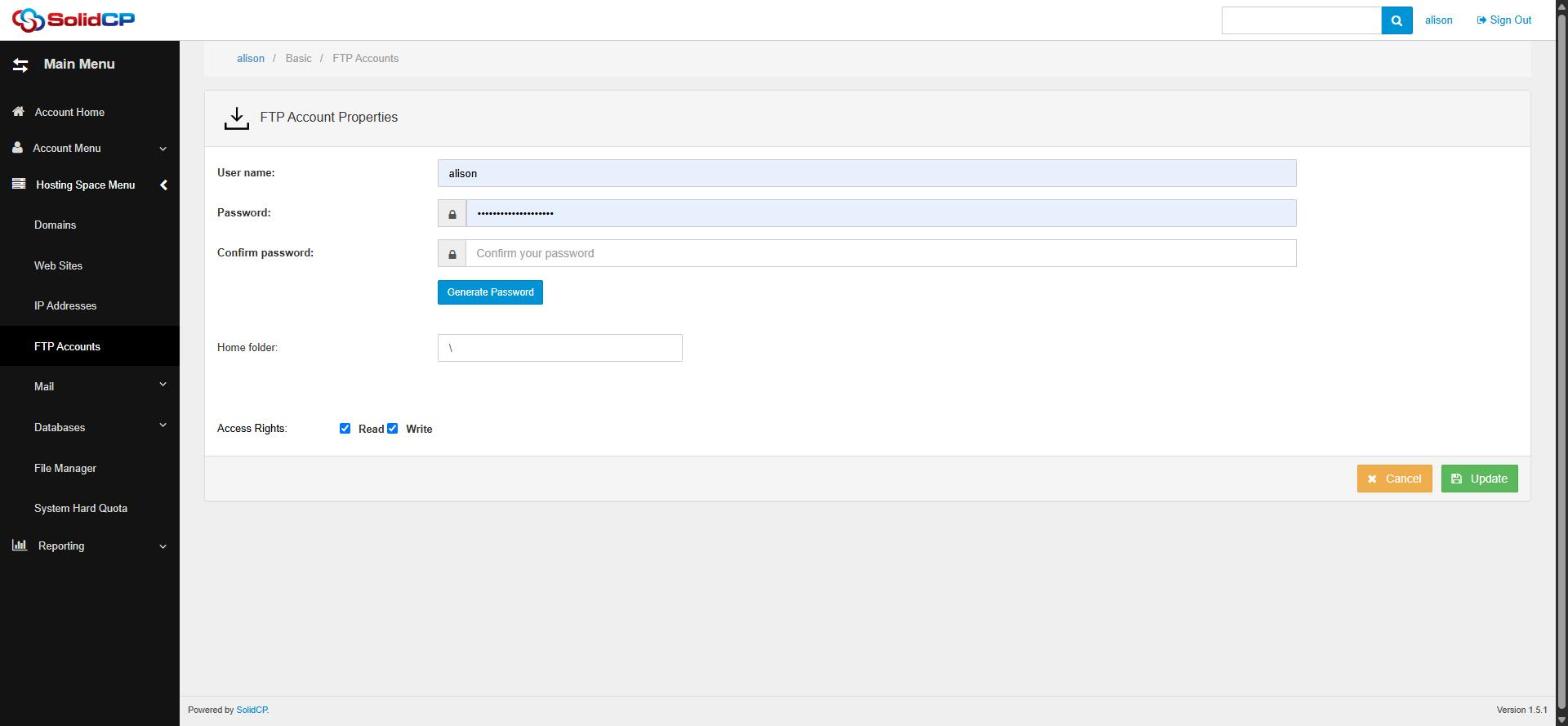
- Fill in the form:
- User name — the FTP login name.
- Password / Confirm password — enter a strong password or click Generate Password.
- Home folder — the folder this account is limited to. Leave it as
\for access to your whole hosting space, or set it to a specific site folder (e.g.\yourdomain.co.za\wwwroot) to restrict a developer to one site only. - Access Rights — tick Read and/or Write. Uploading requires Write; a read-only account is handy for backups.
- Click Update to create the account.
Connecting with your FTP program
In FileZilla (or any FTP client), use:
- Host: your server's address — shown as Server Name on your client area product page (Services > your hosting package > Hosting Information), or use your domain name once it points at the server.
- Username / Password: the FTP account you just created.
- Port: 21 (choose "Use explicit FTP over TLS if available" for an encrypted connection).
See How to upload your website with FileZilla for a full walkthrough.
Frequently asked questions
How many FTP accounts can I have?
The quota bar at the bottom of the FTP Accounts page shows your plan's limit and usage.
Where do my website files go?
Into your site's wwwroot folder — e.g. \yourdomain.co.za\wwwroot. Files outside wwwroot are not served to visitors.
Related articles
How to change your FTP account password • How to upload your website with FileZilla • How to use the File Manager in SolidCP