
Applies to: Windows hosting customers
The SolidCP File Manager lets you work with your website files straight from your browser — no FTP program needed. It's ideal for quick jobs: uploading a single file, unzipping an archive, or fixing a filename.
Opening the File Manager
- Log into SolidCP at https://panel.webtech.co.za.
- Click File Manager — under System on the space home page, or in the left sidebar.
- You'll see your hosting space's folders; each website lives in its own folder (e.g.
yourdomain.co.za), with the public files inside its wwwroot subfolder. The bar at the bottom shows your disk space usage.
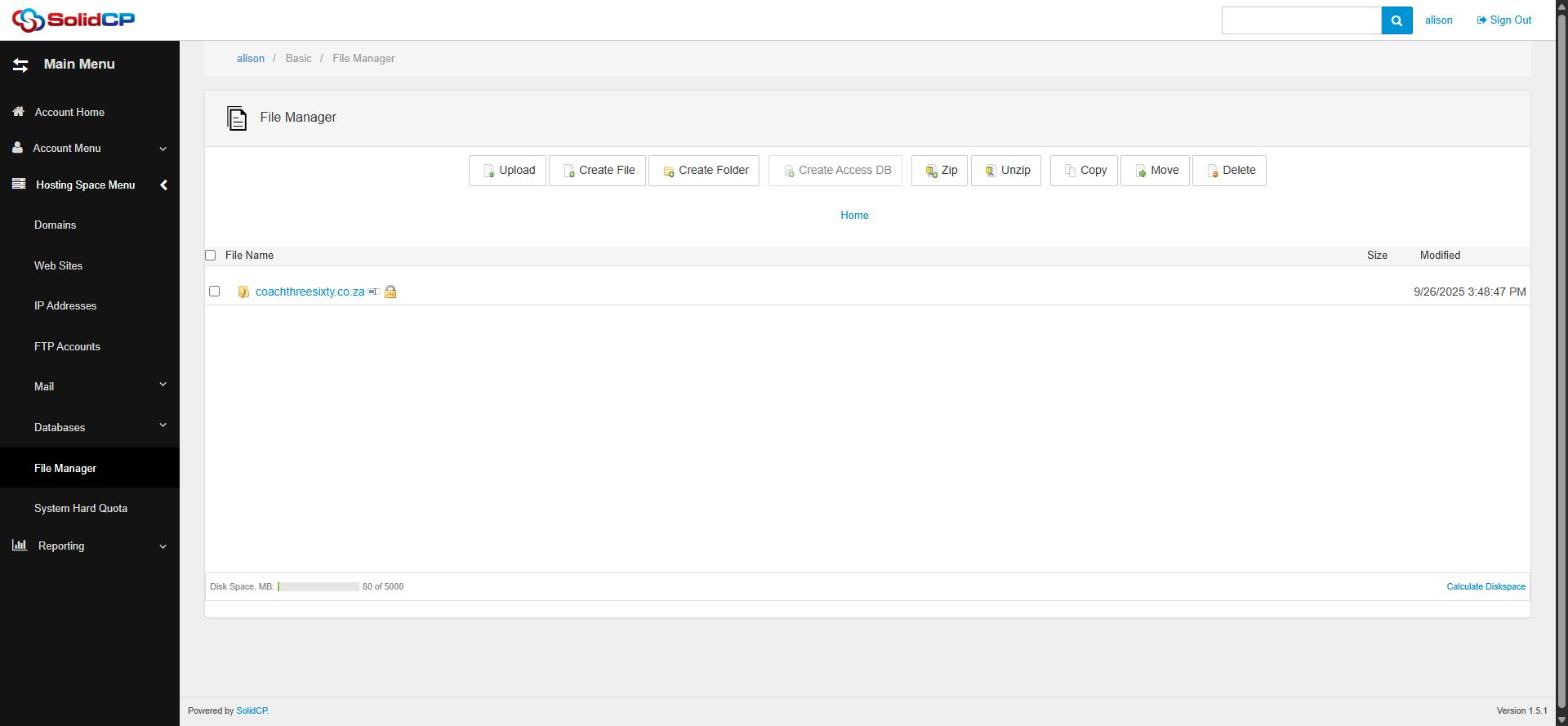
The toolbar
- Upload — send files from your computer to the current folder.
- Create File / Create Folder — make a new empty file or folder.
- Zip / Unzip — compress selected items to a .zip, or extract an uploaded archive. This is the fastest way to upload a whole site: zip it locally, upload one file, then unzip on the server.
- Copy / Move — duplicate or relocate selected files and folders.
- Delete — remove selected items. There is no recycle bin — deleted files are gone, so double-check before confirming.
Tick the checkbox next to a file or folder first, then click the toolbar action. Click a folder's name to open it, and use the breadcrumb path to go back up.
When to use FTP instead
For a handful of files, the File Manager is quicker. For a whole site, many files, or regular publishing, an FTP program like FileZilla is more robust — it resumes failed transfers and shows clear progress. See How to upload your website with FileZilla.
Related articles
How to upload your website with FileZilla • How to add a website in SolidCP