
Applies to: Windows hosting customers
Change your FTP password whenever someone who had it no longer needs access — a departing developer, an old agency — or any time you suspect it may have leaked. FTP credentials are a favourite target for website malware, so this small habit prevents big headaches.
Changing the password
- Log into SolidCP at https://panel.webtech.co.za (see How to log into SolidCP).
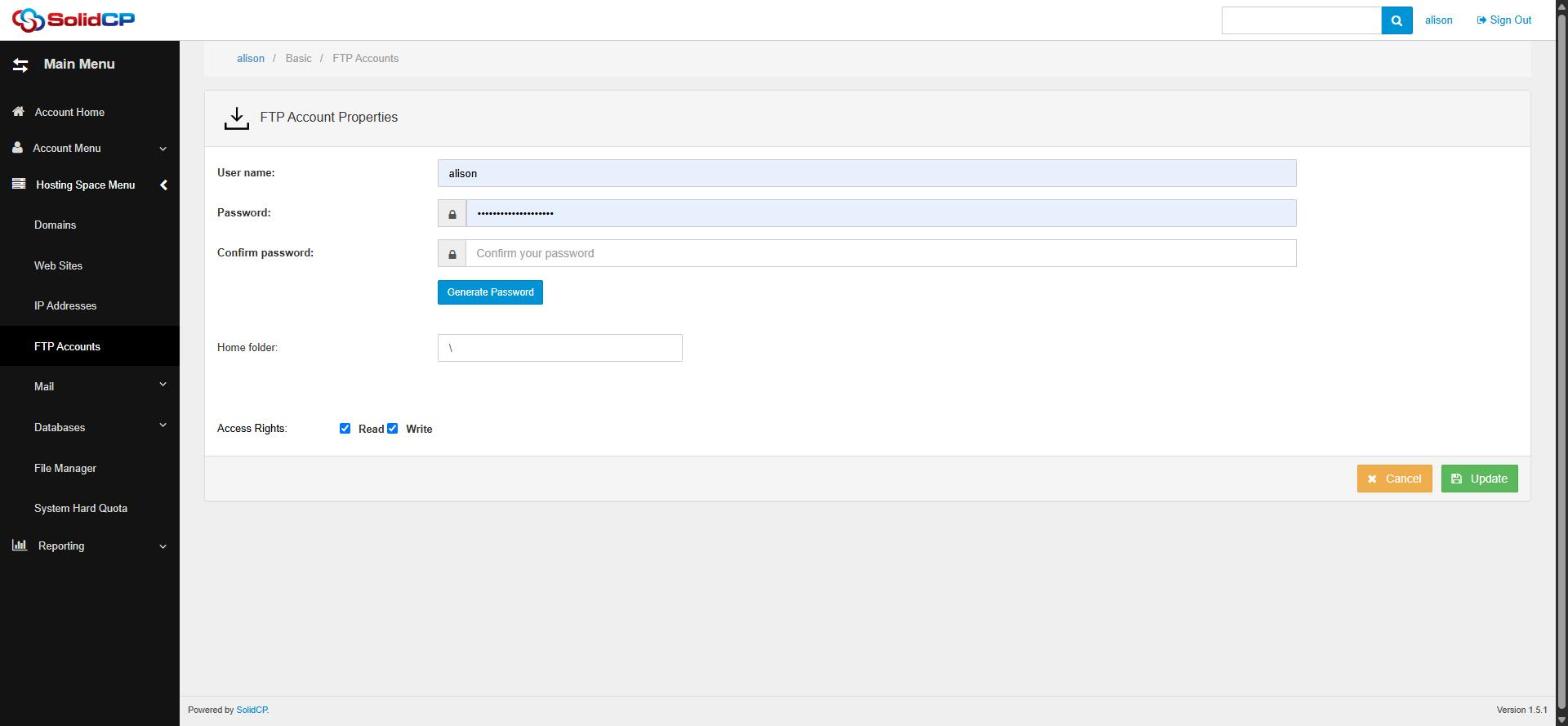
- Go to FTP Accounts in the left sidebar.
- Click the FTP account you want to update.
- Enter the new password in the Password and Confirm password fields — or click Generate Password for a strong random one.
- Click Update. The change takes effect immediately.
After changing it
Update the saved password in your FTP program — in FileZilla that's the entry in the Site Manager — and in any deployment tools or scripts that publish your site. Anything still using the old password will get "login incorrect" errors from now on.
Frequently asked questions
I've lost the FTP password entirely — can I recover it?
Passwords can't be viewed, only replaced — just set a new one using the steps above.
My website was defaced or infected — what should I do about FTP?
Change the FTP password immediately, change your SolidCP password too, scan the computers that had the credentials saved (malware often steals FTP passwords from FTP programs), and open a support ticket so we can help check the server side.
Related articles
How to add an FTP account in SolidCP • How to upload your website with FileZilla